One visualizer for your whole mix
Select the tracks, pick a scene, press Create. Segue places a live visualizer above every song in your DaVinci Resolve timeline and carries it through each overlap.
For DaVinci Resolve Studio 20 and 21 on Windows 11.
On screen:Circle · Coral Light
segue
[ˈseɡ.weɪ], like “segway”
In music: one song flowing into the next without a pause.
Segue does that for video. It analyses every song in your mix once, then draws one continuous, live visualizer inside Fusion. Each song can have its own look, and every overlap becomes a smooth transition.
See it in action
A real DaVinci Resolve project: three songs, overlaps, one visualizer. Every frame of the visualizer is a final export from Resolve, with the music it reacted to.
From hours of keyframes to one button
Usually
- Build node trees in Fusion by hand for every song.
- Convert the audio with an external program, then wire the result into nodes.
- Or upload music to an online service, wait for a render, download, re-import — and pay a subscription.
- Change the look? Start again and render again.
With Segue
- Select the tracks of your mix — any number of songs on A1…An.
- Pick a scene, a colour or “Random”.
- Press Create: the visualizer appears on a new video track above the whole mix.
- Change scene, palette or pattern in seconds — the audio is not analysed again.
How it works
Workspace → Scripts → Segue. Three steps, no node wiring, no file paths.
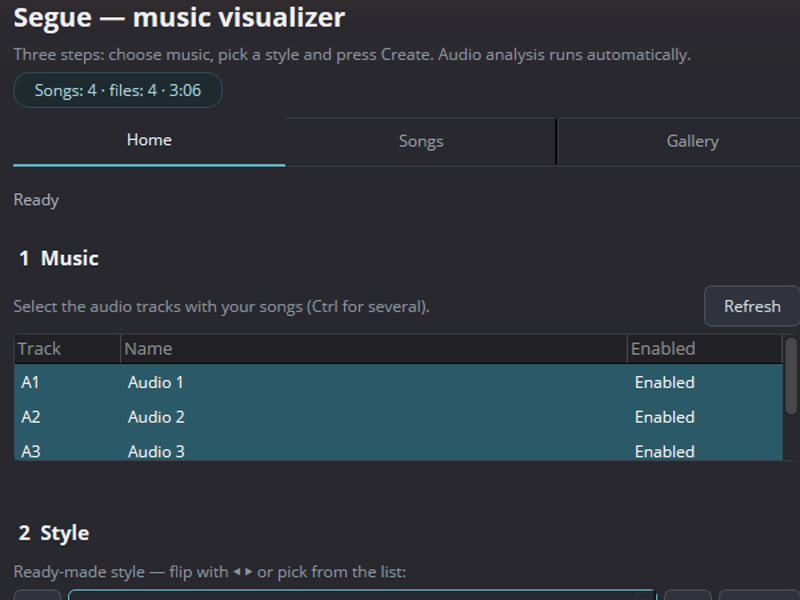
Select the tracks
The panel lists your audio tracks. Select the ones with songs — the whole mix, gaps and overlaps included.
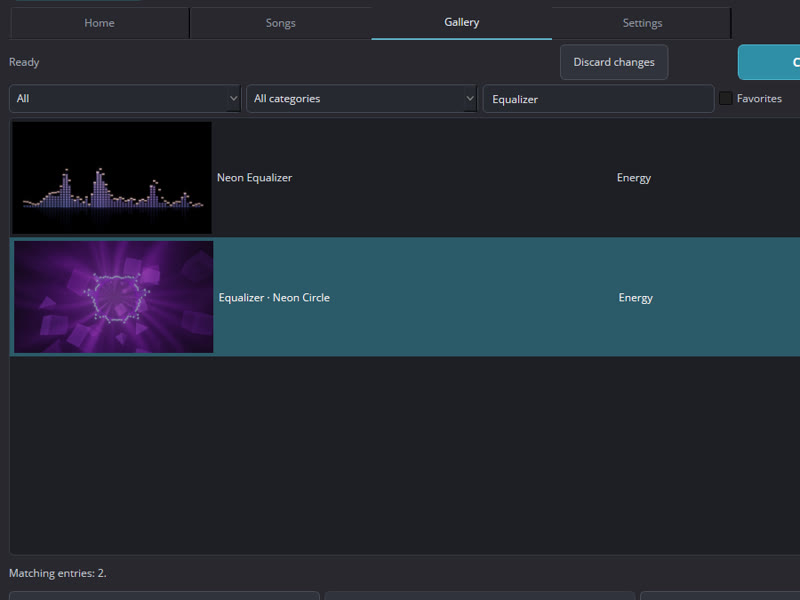
Pick a scene
Choose a ready-made style from the gallery, a palette and a spectrum pattern — or let “Random” assign a scene per song.
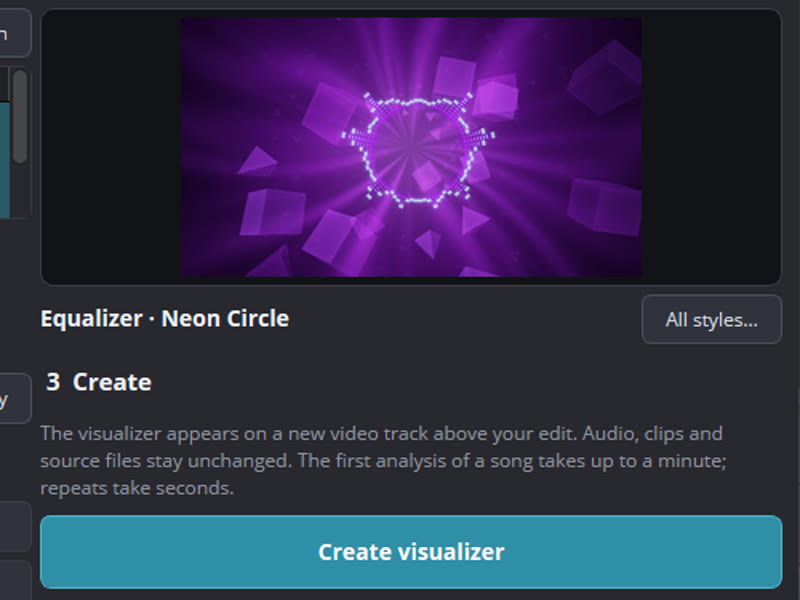
Press Create
Each song is analysed once. The visualizer is placed on a new video track over the full range of your music. Your clips stay untouched.
Scenes
Abstract, luminous and always moving, in the spirit of the music visualizers of the 2000s. Every clip here is a real export from DaVinci Resolve. Pick a scene to play it.

The v1 catalogue is still being finalised.
What Segue does
Live inside Fusion
Graphics are computed in Fusion as you play: no intermediate video, no pre-render, no external converter. Seek, preview and final export match.
Prepares for the rise
The track is analysed in advance, so a scene can gather itself before the volume rises and open on it — a real-time visualizer cannot know what comes next.
Colour and pattern per song
24 palettes and several spectrum patterns. Give each song its own look, or let Segue vary colour and pattern from song to song.
MP3, WAV, FLAC
Each song is analysed once with built-in decoders. Changing scene or appearance never needs analysis again.
English and Russian
The panel speaks English and Russian; the language choice is remembered.
Offline installer
One installer with everything included. No Python, no Node, no codec packs, no internet connection needed.
Built for multi-song mixes
Long DJ sets, albums, playlists and mixes are the main case, not an afterthought.
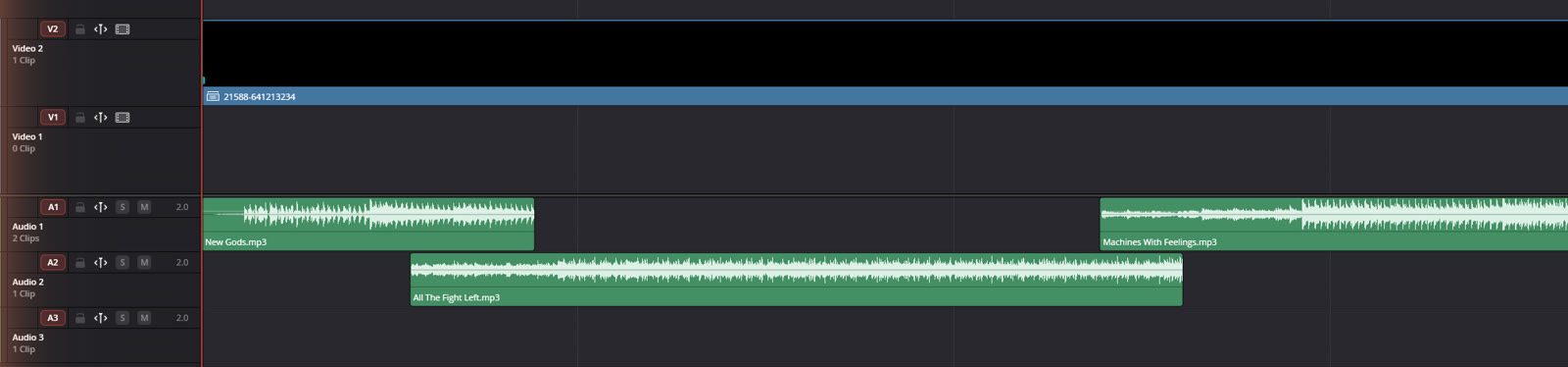
- Many songs in a row, on as many audio tracks as you use.
- Trims, pauses and gaps are respected.
- Overlapping songs blend smoothly — no hard switch at the next clip.
- One shared visualizer for the whole mix, with its own scene per song if you want.
- Reacts to the source audio of each song.
Compared with the usual approaches
| Segue | By hand in Fusion | External converter + nodes | Online service | |
|---|---|---|---|---|
| A whole mix of many songs | Automatic, one pass | Song by song | File by file | Upload each, wait for render |
| Smooth transitions at overlaps | Automatic | Keyframes by hand | Wiring by hand | Usually not |
| Intermediate files | None | None | Converted data/images | Rendered video |
| Change the look later | Seconds, no re-analysis | Rebuild | Reconvert and rewire | Render again |
| Works offline | Yes | Yes | Usually | No |
| Price | One-time | Your time | Varies | Subscription |
Who it is for
Musicians and beatmakers
Put a release, an album or a beat tape on YouTube with visuals that move with the music — without learning Fusion.
Music channels and mixes
Hour-long mixes and playlists get one continuous visualizer, a fresh look per track and smooth transitions.
Editors
A fast, non-destructive visualizer layer that stays live in the edit: re-trim the music, update, export.
Pricing
Try every feature for free. Buy when you are ready to export without the watermark.
Free trial
$0
no time limit
- All features
- Watermark on the video (corner + occasionally centre)
- No account, works offline
Licence
$39$49
one-time purchase. Launch price until November 30, 2026.
- No watermark
- Your name and email shown in the panel
- Use on 2 computers
- All 1.x updates free
- Commercial use of your videos
Sales open with v1 (planned for late November 2026). Join the waitlist to get the launch price.
Payments are processed by Stripe as merchant of record; prices may include or add local taxes.
System requirements
Playback speed depends on your GPU and project; we do not promise a frame rate on unspecified hardware. Try the free version first.
- Operating system
- Windows 11, 64-bit
- DaVinci Resolve
- Studio 20 (20.2.x) and Studio 21 (21.x). The free edition is not supported.
- Timeline
- 1920×1080, 24 / 30 / 60 fps
- Audio
- MP3, WAV, FLAC
- Disk
- About 50 MB of analysis data per hour of music
- Internet
- Not required after download
Questions
Does it work with the free version of DaVinci Resolve?
No. Segue requires DaVinci Resolve Studio 20 or 21. The free edition is not supported.
Is there a Mac version?
Not yet: Segue is Windows 11 only. If you need macOS, say so in the waitlist form — demand decides whether a Mac version is built.
Does it react to my final mix in Fairlight?
No — it reacts to the source audio of each song. EQ, effects, automation and buses in Fairlight are not taken into account. Positions, trims, pauses and overlaps of your clips are.
Do I need an internet connection?
Only to download Segue and to buy a licence. The installer, audio analysis and licence check work offline. Segue sends nothing anywhere.
What happens when DaVinci Resolve updates?
Each Segue release lists the Resolve builds it was tested on. After major Resolve updates we test and ship fixes as free 1.x updates.
Can I get a refund?
Please test everything in the free trial before buying — it has all features. Refund terms are on the Refunds page. Refunds
Can I use the videos commercially?
Yes. Videos you make with a licensed copy can be used commercially, including monetised YouTube channels and client work. Trial exports carry a watermark.
Get notified at launch
Leave your email — one message when sales open, with the launch price. No newsletter.